Remove an object from your photo
Clear a distracting object from a photo you want to keep. Upload your image, then select the object in the editor and describe what should disappear.
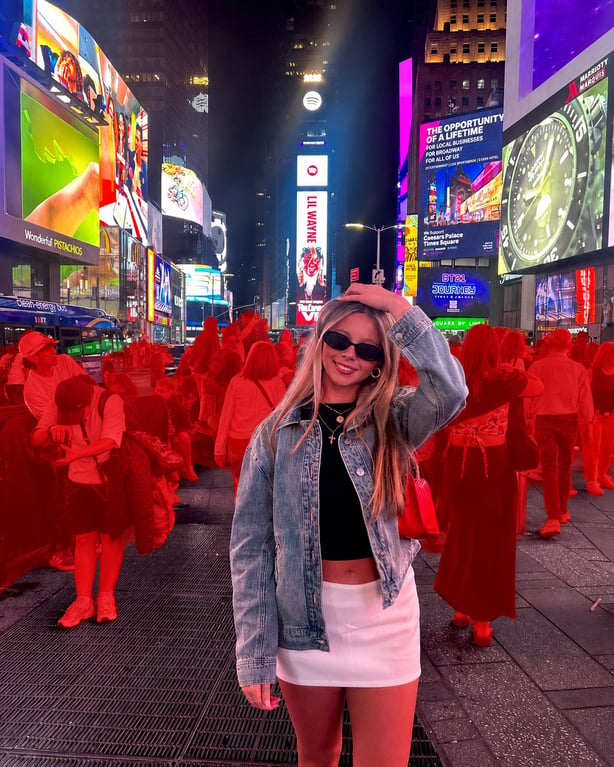
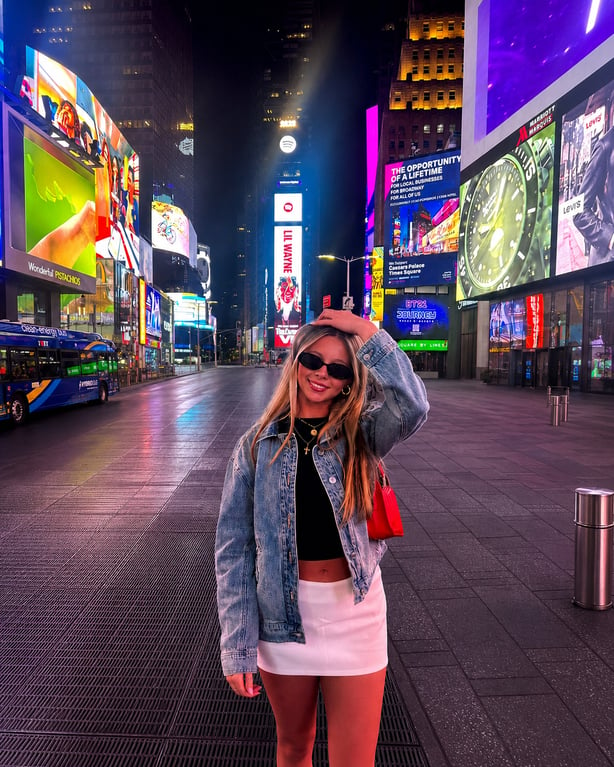
An umbrella removed from a travel photo
How it works
Upload your photo
Choose the image you want to clean up. You can describe the unwanted object here.
Select the object in the editor
Continue with your photo preserved, then click or tap a point on the object in Retouch mode.
Generate and inspect the edit
Sign in and check the credit cost before generating. Compare the filled area and nearby details with your original.
Pricing plans
Starter
For getting started
per month · billed $99.99 every 6 months
per month · ≈ 500 AI images
Up to 3 model trainings per month
- 5,000 shared credits per month
- Use credits for up to 92 Nano Banana Pro images or 250 GPT Image 2.5 medium images
- Create up to 8 Seedance 2.5, 11 Kling 3.0 Pro, or 14 Grok Imagine clips (5 sec)
- Generate up to 500 standard AI images and AI photos every month
- Refine up to 500 photos with AI editing every month
- Starter credit pool for lighter AI video, editing, and upscaling projects
Hobby
For regular creators
per month · billed $149.99 every 6 months
per month · ≈ 900 AI images
Up to 6 model trainings per month
- Everything in Starter, plus 4,000 additional credits per month
- Added credits alone cover 2 model trainings, 74 Nano Banana Pro images, or 200 GPT Image 2.5 medium images
- Or 6 extra Seedance 2.5, 9 extra Kling 3.0 Pro, or 11 extra Grok Imagine clips (5 sec)
- Generate up to 900 standard AI images and AI photos every month
- Refine up to 900 photos with AI editing every month
- More credits for regular AI video, PhotoGPT Flow, and upscaling workflows
Pro
For power users
per month · billed $199.99 every 6 months
per month · ≈ 1600 AI images
Up to 10 model trainings per month
- Everything in Hobby, plus 7,000 additional credits per month
- Added credits alone cover 4 model trainings, 129 Nano Banana Pro images, or 350 GPT Image 2.5 medium images
- Or 11 extra Seedance 2.5, 16 extra Kling 3.0 Pro, or 19 extra Grok Imagine clips (5 sec)
- Generate up to 1600 standard AI images and AI photos every month
- Refine up to 1600 photos with AI editing every month
- Largest credit pool for frequent MiniMax Hailuo H3, Google Omni, Grok Imagine Video 1.5, Seedance 2.0, Veo 3.1, Kling 3.0, and 4K video production
Frequently asked questions
- Clean up a travel photo. Remove a small distraction that competes with the scene or subject you wanted to capture.
- Simplify a product image. Ask to remove an unwanted prop or loose object so the product gets more attention.
- Tidy a portrait background. Target a distracting item behind your subject while asking to preserve the person and setting.
The AI generates what could be behind the removed object. Large objects, overlapping subjects, and complex patterns can leave visible changes, including outside the selected spot.
Continue to the editor, then click or tap a point on the unwanted object in Retouch mode. Describe the object and what should remain. Your photo and any instructions from this page carry into the editor.
A small, clearly separated distraction is a useful starting point. Objects covering a face, detailed lettering, or complex patterns are harder to replace convincingly. Inspect the edited area and the rest of the photo.
No. It generates a plausible replacement using the visible surroundings. It cannot establish what the hidden area actually looked like, and details outside the selected point may also change.
No. You choose the spot and prepare the instructions before generation. Sign in to run the edit, and review the credit cost for the selected model and settings before starting.