Node-based composition
Plan each generation step as a visible node, then connect prompts, assets, motion, and final renders into one reusable graph.
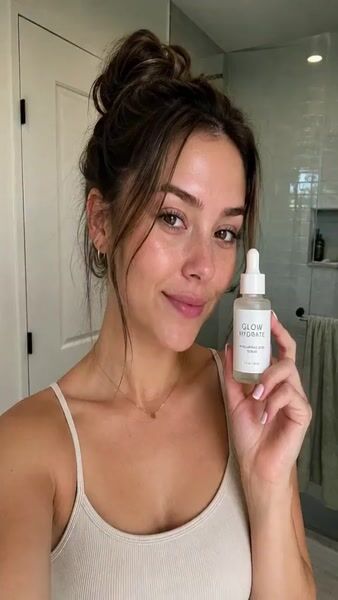
Build authentic, relatable UGC-style campaign visuals using PhotoGPT Flow: upload character and product assets, extract subjects, create multiple scenes, and generate short-form videos that feel organic and engaging.
References
This workflow combines the source assets, prompts, and mid outputs needed to produce the UGC content.
Inputs and progress
Source assets and intermediate results used before the UGC content is finalized.
Final output
Go to workflowThe final generated UGC video is playable here. Click the preview to play or pause.
Every model choice, prompt and output stays on one visual canvas, from the first input to the finished result.
Use an Uploads node to add a single image containing both the character and product that you want to feature in the...
Connect the character image to an image generation node to extract and refine the character for use in scenes.
Connect the product image to an image generation node to extract and prepare the product for scene integration.
Combine character and product outputs in image generation nodes to create various UGC-style scenes for your campaign.
Plan each generation step as a visible node, then connect prompts, assets, motion, and final renders into one reusable graph.
Mix image and video models in the same canvas, compare branches, and route the strongest output into the next step.
Preview the exact public workflow, clone it into your account, and replace the starting assets while keeping the structure intact.
Generate authentic-looking content that resonates with audiences on TikTok, Instagram, and YouTube Shorts.
Turn character and product assets into ad-ready visuals that feel organic rather than staged.
Turn one connected workflow into creator-style posts, hooks, and short-form campaign variations for every social channel.
yourbrand Creator-style product moment, ready for launch week.
yourbrand Same product, fresh scene, new hook for Reels.
yourbrand From workflow canvas to campaign-ready social asset.
A few rules that make the campaign graph easier to build and run.
Clean source images produce better extractions and scene integrations.
Isolated subjects give you more control over how they appear in scenes.
UGC content works best with variety — test different settings, moods, and compositions.
Raw images with complex backgrounds can cause inconsistent scene generation.
On Brand Visuals. Turn product and brand assets into a reusable graph for consistent campaign visuals.
UGC Video Creator. Turn a creator concept into social-ready scenes, hooks, and short-form video variations.
Brand Advertisement Campaign. Connect products, props, model references, and final shots into one campaign pipeline.
B-Roll Generation. Plan cinematic product shots, first frames, and motion-ready outputs on one canvas.
Magazine Posters. Compose repeatable creative systems for poster layouts, art direction, and campaign assets.
LinkedIn Profile Polish. Create polished profile photos while keeping inputs, prompts, and outputs traceable.
On Brand Visuals. Generate product-led visuals that carry the same brand system across every output.
Spilled Matcha Trend. Prepare first-frame assets and motion prompts before sending the best branch into video.
Outfit Visualization. Create image variations from a subject reference and style request without losing context.
Thank you for taking the time to explore our content.
PhotoGPT Flow is designed to help you create authentic UGC-style content efficiently — from raw assets to polished scenes and videos.
We truly value your feedback. If you have any thoughts, questions, or ideas, please share them with us — we are always listening, and solving real problems is our priority.
If you'd like to go further, you're warmly invited to join our Discord community. There, you can explore workflow templates, see community builds, and share your voice directly with our team and other creators.
— Yun
Content Team Lead
Promotion Code
CREATORS10
10% Discount on All Plans
Generate, edit, upscale, and animate high-quality visuals from one AI creator studio.
Get Started Free